


FitSphere support centre
Find answers to the most frequently asked questions.
What is Health Connect?
Health Connect is a free application from Google that only works on Android phones.
Here’s how it works: Your watch → Watch application → Health Connect → FitSphere
Your watch collects steps and activity data. The watch application sends this data to Health Connect. FitSphere reads your steps from Health Connect.
Health Connect does not replace your watch app. It simply allows apps to share health data securely and privately with each other. All data remains on your phone.
Do I need to install Health Connect?
It depends on your version of Android.
- Android 14 or newer – Health Connect is already built into your phone. You can find it in Settings.
- Android 9, 10, 11, 12 or 13 – You will need to download Health Connect from the Google Play Store.
- Android 8 or older – Unfortunately, Health Connect is not available for your phone.
How do I connect my watch to FitSphere via Health Connect?
Use this option if you want all your health apps to share data in one place.
Step 1 — Make sure Health Connect is available on your phone
- Android 14+: Already installed. Open Settings and search for “Health Connect”
- Android 9–13: Download Health Connect from Google Play
Step 2 — Turn on syncing in your watch app
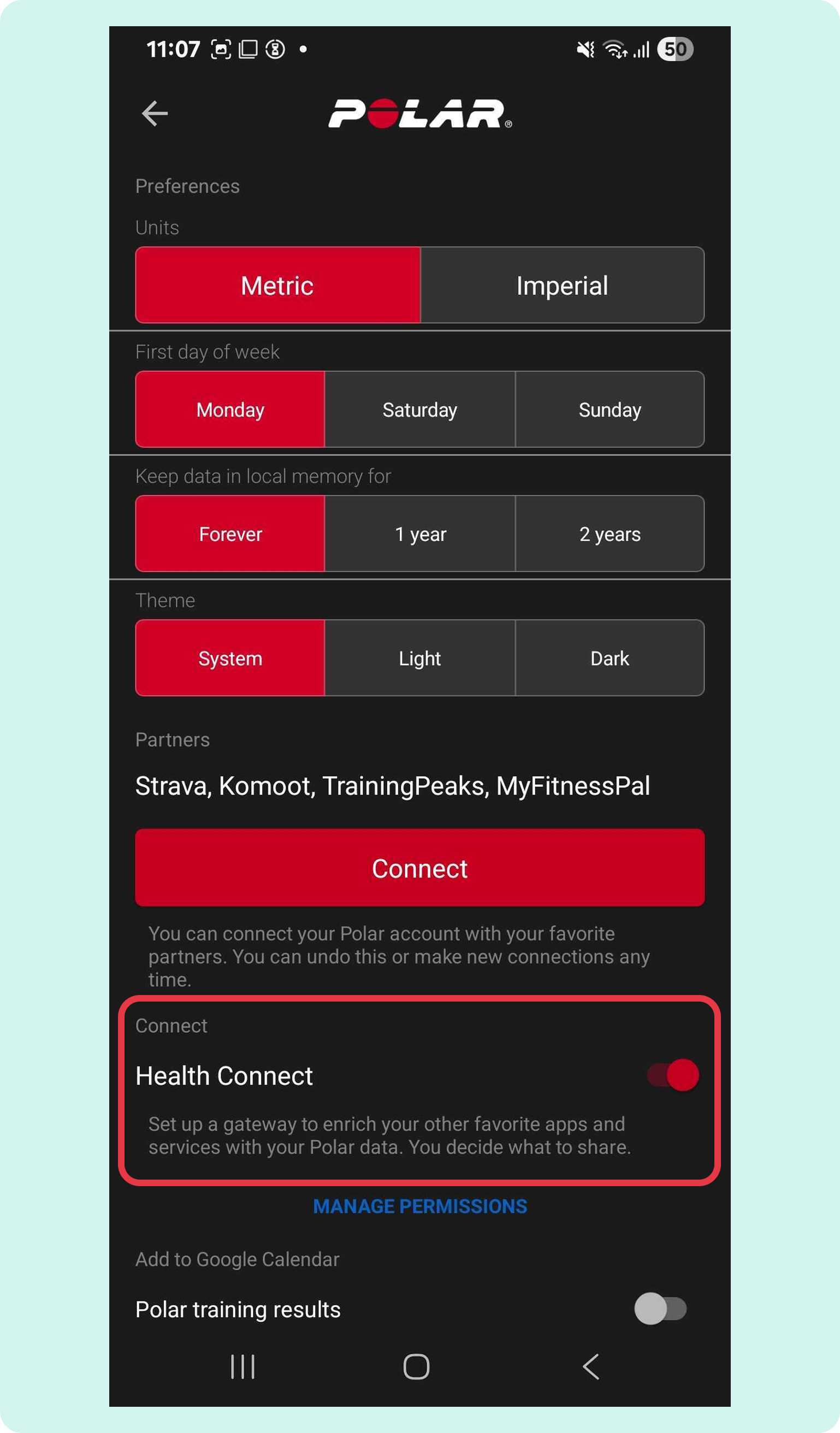
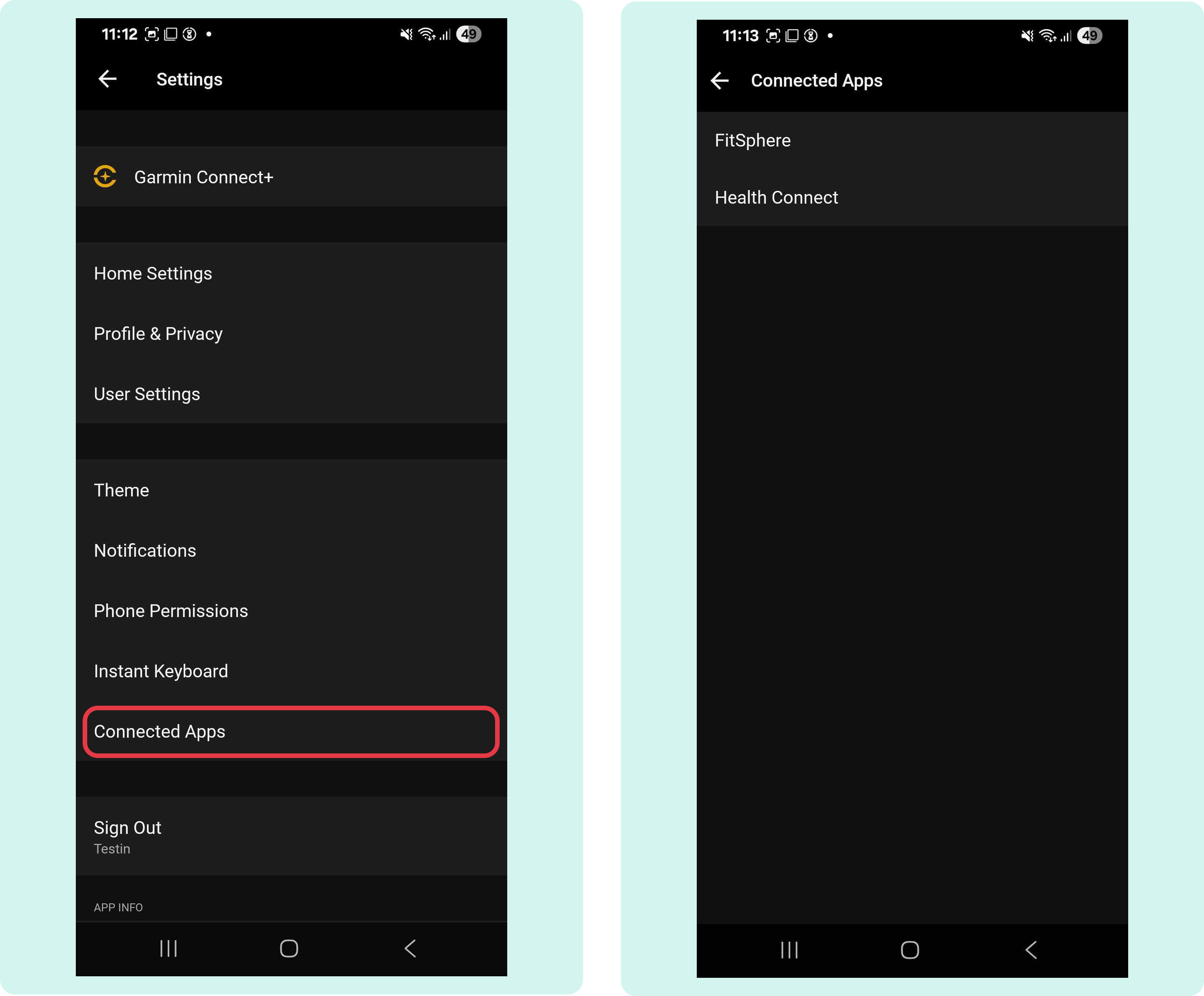
Open your watch app and turn on Health Connect syncing. See the screenshots below to find this setting in each app.
- Polar
- Garmin
- Fitbit

- Google Fit

- Suunto
- The most effective method is to use the Health Sync application available from Google Play to connect data between the Suunto application and Health Connect (as Suunto does not have direct, native integration with Health Connect).
Step 3 — Connect Health Connect in FitSphere
- Open the FitSphere app
- Go to Settings → Connections
- Select Health Connect
- Allow FitSphere to read your step data
- Tap the “Profile” tab in the FitSphere app, then tap the gear icon in the upper corner to open the settings.

- Find “Connections” in the Settings menu and tap on it

- Select Apple Health and tap “Connect“.

- To ensure full functionality of the FitSphere app with your Apple Health, select “Turn On All” and then confirm by clicking the “Allow” button to complete the authorisation process
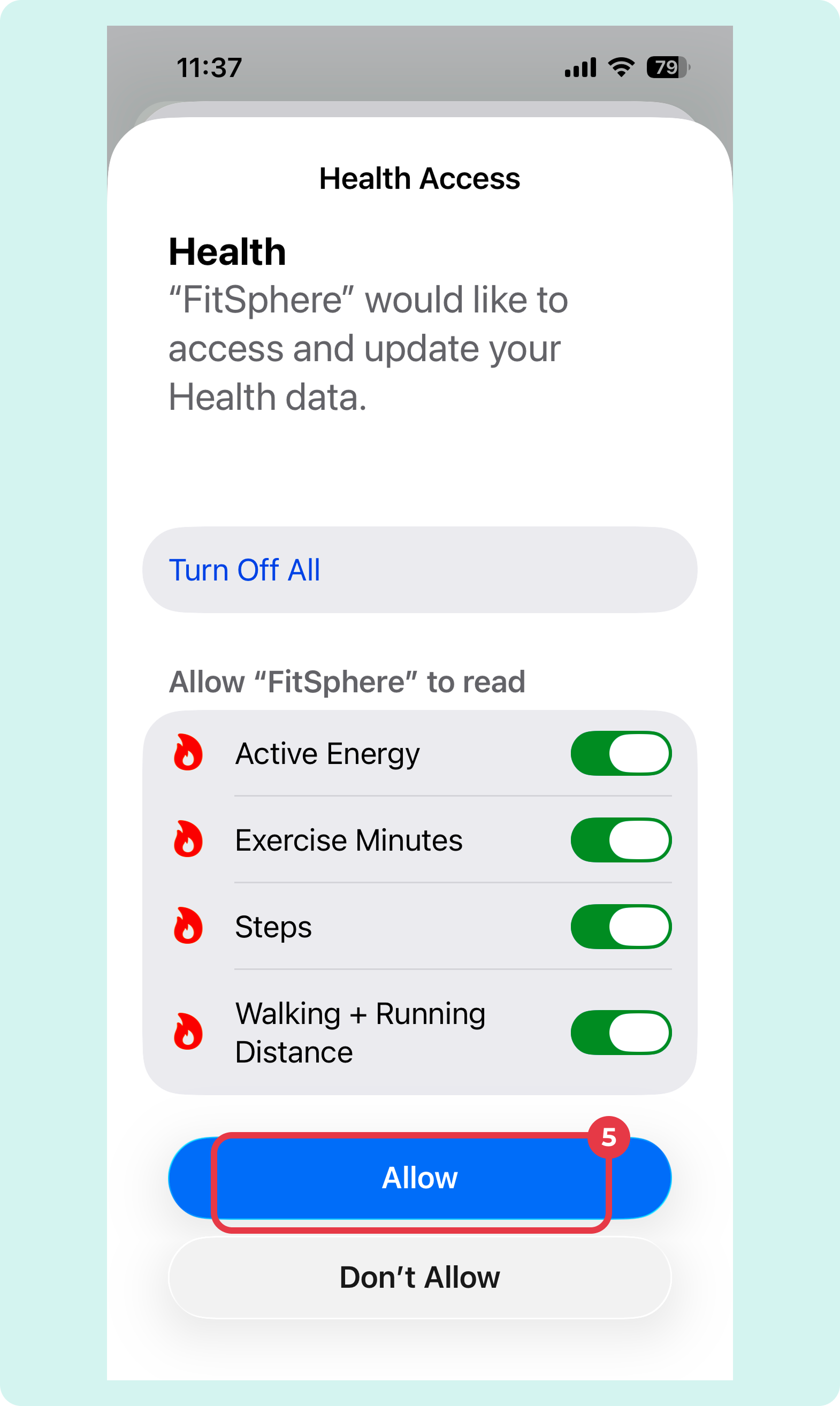
Synchronisation may not happen immediately, so if your activity data does not update right away, wait a few minutes and check again.
- Tap the “Profile” tab in the FitSphere app, then tap the gear icon in the upper corner to open the settings.
- Find “Connections” in the Settings menu and tap it
- Select Fitbit and “Connect“

- You will be redirected to the Fitbit login page. Enter your Fitbit account details and log in

- To ensure full functionality of the FitSphere app with your Fitbit, select “Allow all” and then confirm by clicking the “Allow” button to complete the authorisation process

Synchronisation may not occur immediately, so if your activity data does not update right away, please wait a few minutes and check again.
- Tap the “Profile” tab in the FitSphere app, then tap the gear icon in the upper corner to open the settings.
- Find “Connections” in the Settings menu and tap it.
- Select Garmin and “Connect“
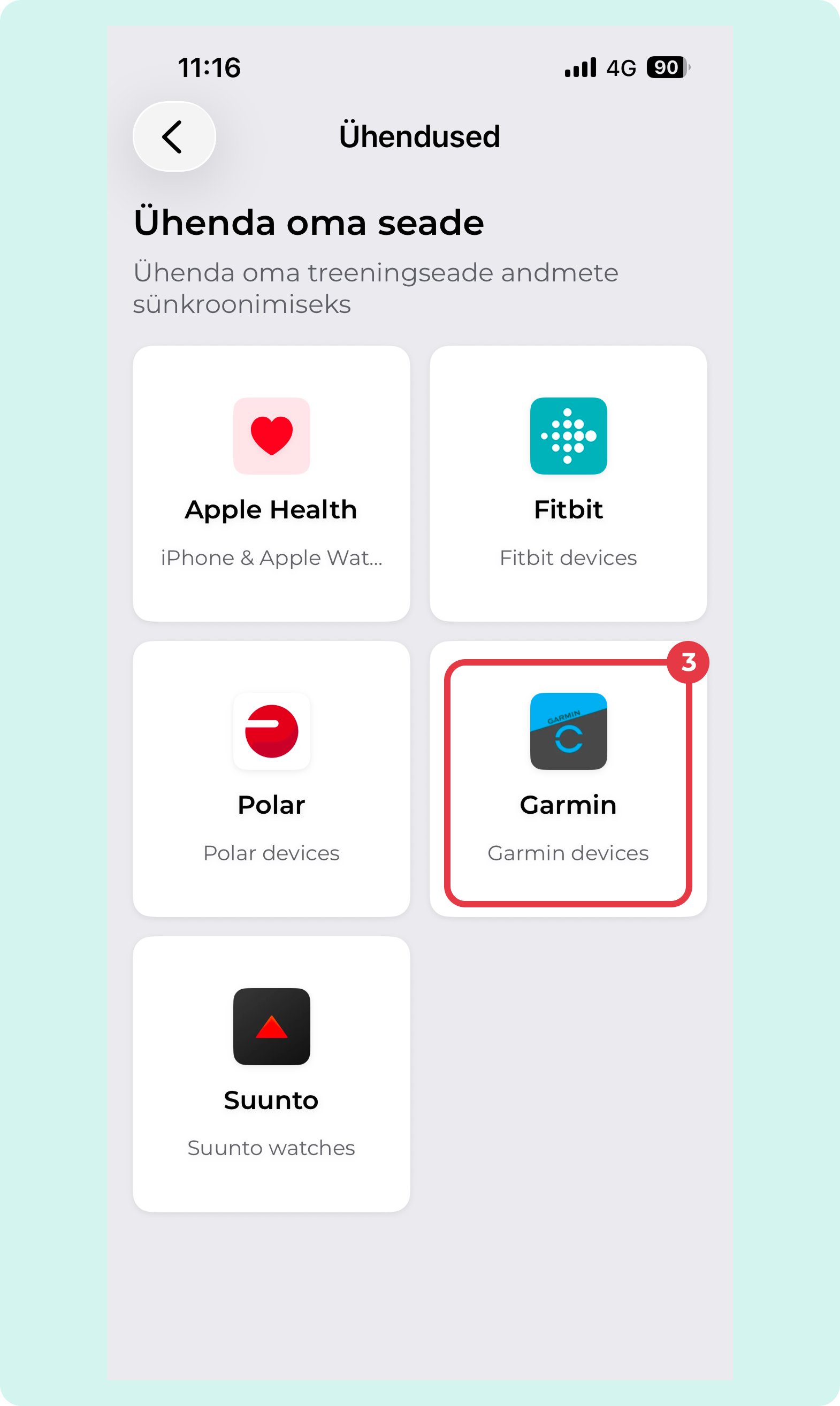
- You will be redirected to the Garmin login page. Enter your Garmin account details and log in

- To ensure full functionality of the FitSphere app with your Garmin, allow all permissions and then confirm by clicking on the “Agree” button

Synchronisation may not occur immediately, so if your activity data does not update right away, please wait a few minutes and check again.
- Tap the “Profile” tab in the FitSphere app, then tap the gear icon in the upper corner to open the settings.
- Find “Connections” in the Settings menu and tap it
- Select Polar and “Connect“.

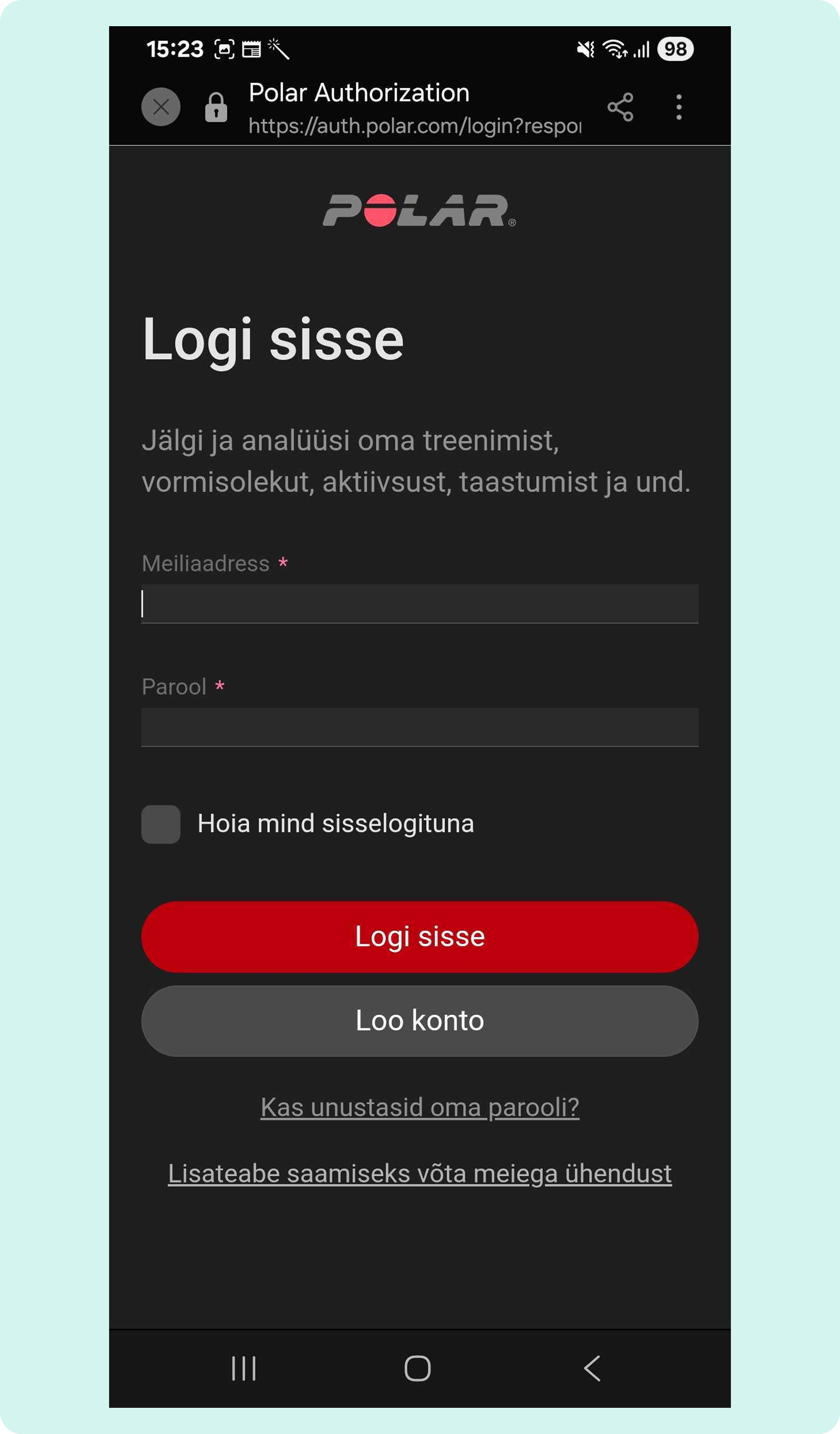
- You will be redirected to the Polar login page. Enter the e-mail address and password associated with your Polar account
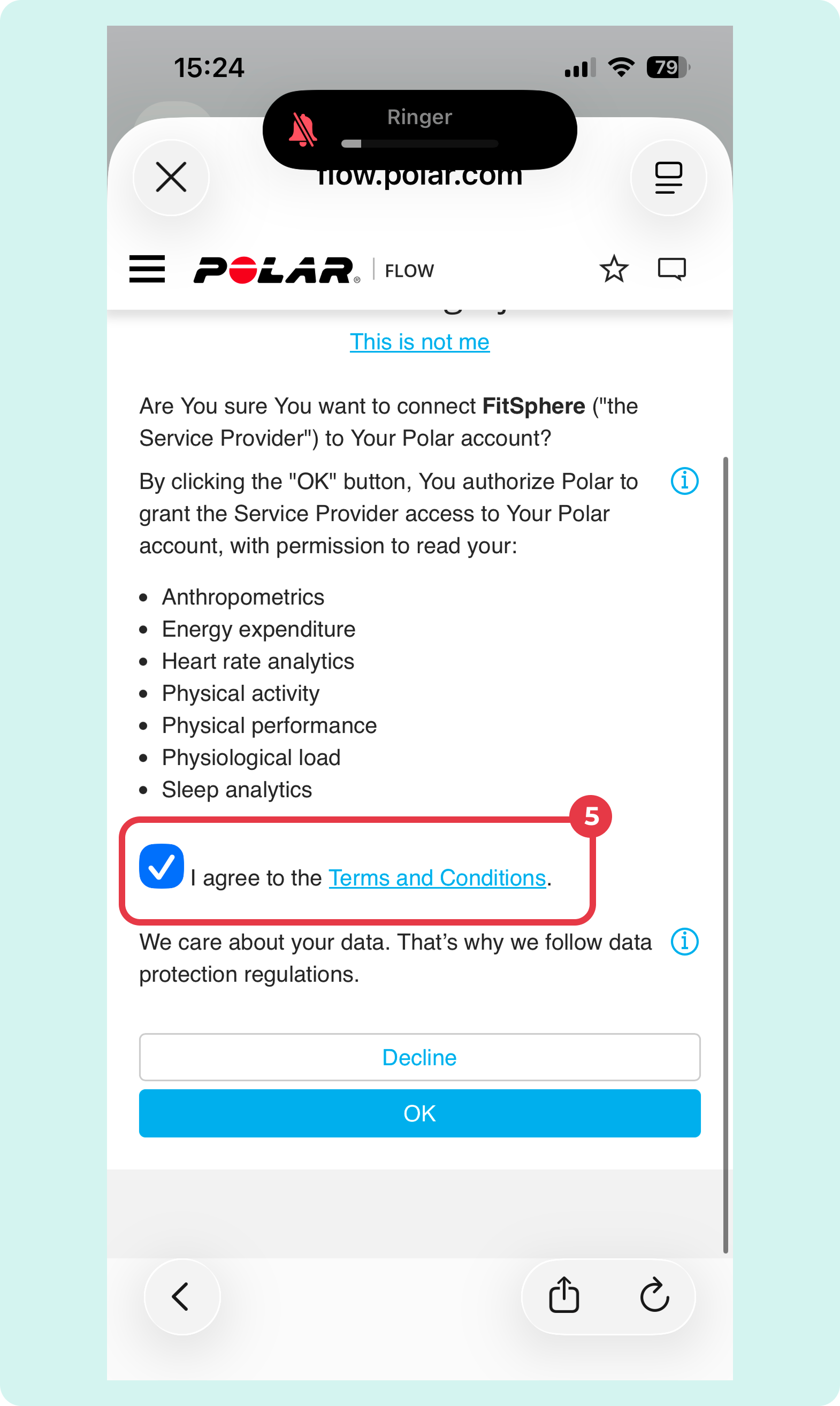
- After logging in, you will see the Polar permissions page, which asks for permission to share your data with FitSphere. Select “I agree to the Terms & Conditions” and then the “OK” button
Synchronisation may not happen immediately, so if your activity data is not updated right away, please wait a few minutes and check again.
- Tap the “Profile” tab in the FitSphere app, then tap the gear icon in the upper corner to open the settings.
- Find “Connections” in the Settings menu and tap it
- Select Suunto and “Connect“

- You will be redirected to the Suunto login page. Enter the e-mail address and password associated with your Suunto account
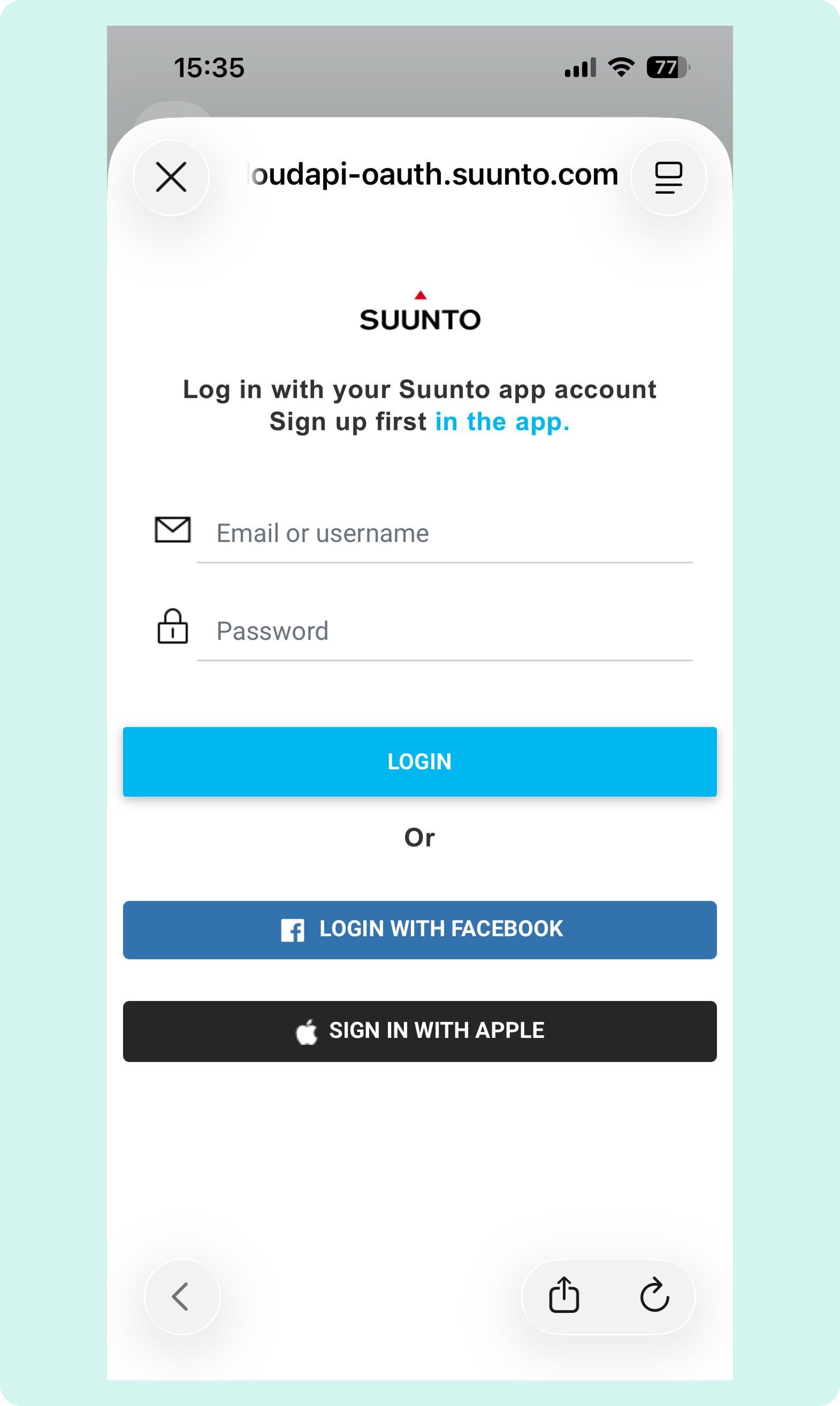
- To fully use the app, allow FitSphere to connect to your Suunto account by clicking the “Authorize” button

Synchronisation may not happen immediately, so if your activity data is not updated right away, wait a few minutes and check again.
- Tap the “Profile” tab in the FitSphere app, then tap the gear icon in the upper corner to open the settings.
- Find “Connections” in the Settings menu and tap it
- Select Google Fit and “Connect“

- You will be redirected to the Google login page. Enter your Google account details or select your account from the list and log in

- After logging in, you will see the Google permissions page, which asks for permission to share your data with FitSphere. Select “Select all” and then click “OK“.

Synchronisation may not happen immediately, so if your activity data does not update right away, wait a few minutes and check again.
We process personal data in accordance with the EU General Data Protection Regulation (GDPR). We only collect what is necessary: e-mail address, name (for information requests) and website usage statistics. You have the right to access your data at any time, request its correction, deletion, restriction of processing or transfer. To do so, please send your request to info@thefitsphere.com.
You can change the language of the FitSphere app in the FitSphere app settings. There are 13 different languages to choose from.
- At the bottom of the home page, click on the Profile button

- Click on the gear icon at the top of your profile

- In the settings, find the Language option in the Account section and select the appropriate language

- Select Continue in the pop-up window, the app will close and the app language will be updated after reopening

You can log in to the application with just your email address and password. If you have forgotten your password or wish to change it:
- Open the application and select “Sign in”

- In the new window, select “Forgot password?“

- Enter your e-mail address

- An e-mail with a code will be sent to the e-mail address you entered. Enter it and create a new password

FitSphere automatically syncs activity data from the following sources:
- Health Connect
- Google Fit
- Apple Health
- Polar
- Suunto
- Garmin
- Fitbit
Make sure that at least one of these applications is installed and configured on your phone. Android users also have the option of using FitSphere Tracker, our built-in step counter.
Activity data is synchronized and displayed after the smart device is correctly configured and the “Register” button is pressed in the FitSphere app.
Exception: If you use the Garmin app, you must first sync your activity in the Garmin app and only then sync your data in the FitSphere app.
FitSphere allows you to choose your activity: walking, running, cycling, rollerblading or skiing. The app measures your activity itself, so the results may differ slightly from Google Fit and Apple Health data.
Important to know: To collect points and participate in competitions, use the automatic data on the home page; activities are a feature for personal tracking. For accurate results, turn off battery saver and allow FitSphere to access your location.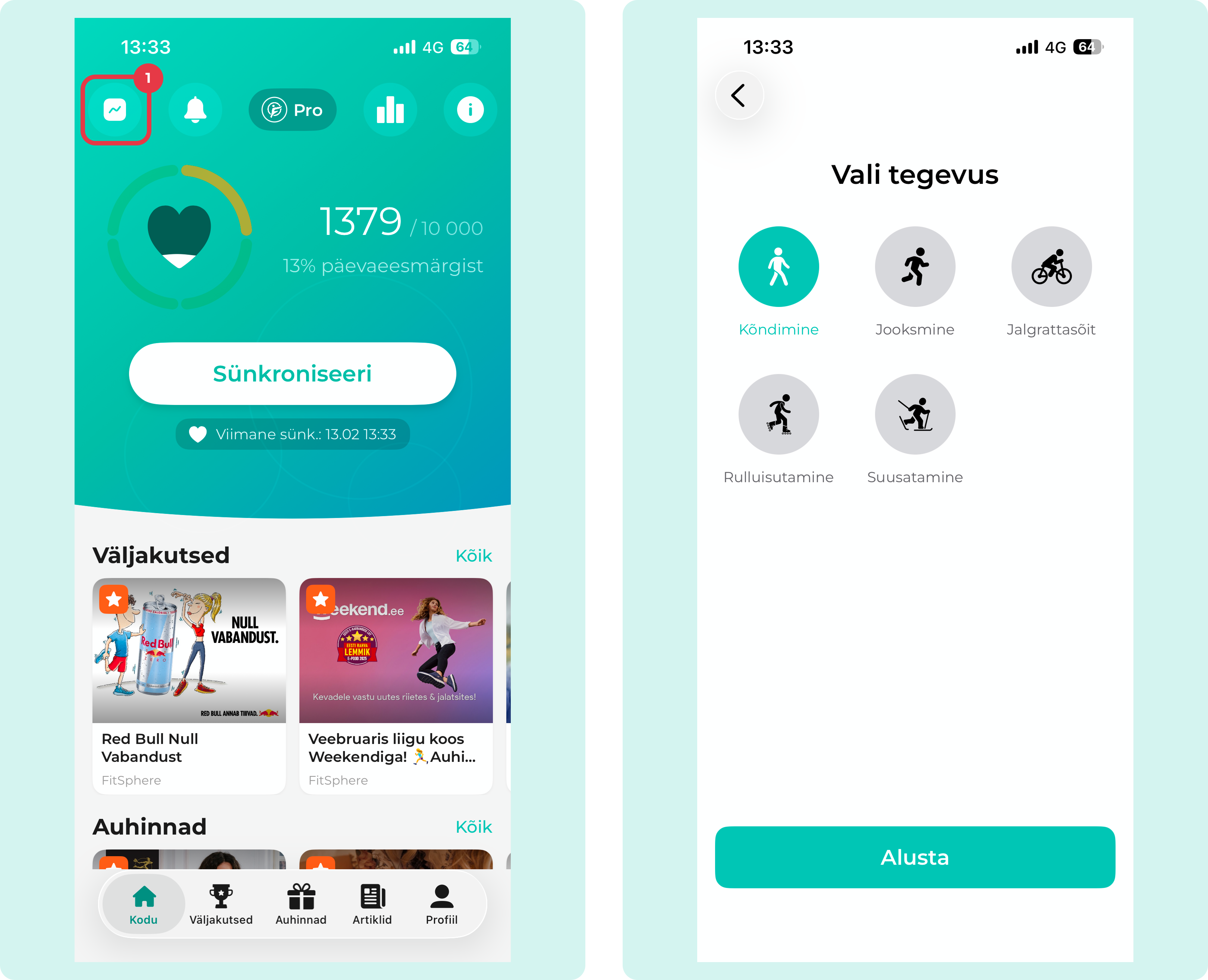
The calculation of active minutes depends on the device used:
- Polar – activity intensity and duration
- Garmin – moderate/vigorous intensity activities
- Fitbit – heart rate-based active zone minutes
- Suunto – heart rate-based active zone minutes
- Apple Watch – training minutes (faster than brisk walking or higher heart rate)
- Google Fit / Apple Health – does not count independently – requires a smartwatch or training app connection
Calorie expenditure data comes from Polar, Garmin, Fitbit, Suunto, Apple Health, and Google Fit applications. These are calculated based on activity intensity, heart rate and user profile (gender, age, height, weight, training type). FitSphere only counts active calories, not total daily energy expenditure.
Garmin, Fitbit, Suunto, Apple Health, and Google Fit automatically transmit distance in the background – no need to activate separate measurement.
Exception: Polar only transmits the distance collected with the “tracking” function.
If you see a sync error or server error (as shown in the image), follow the steps below.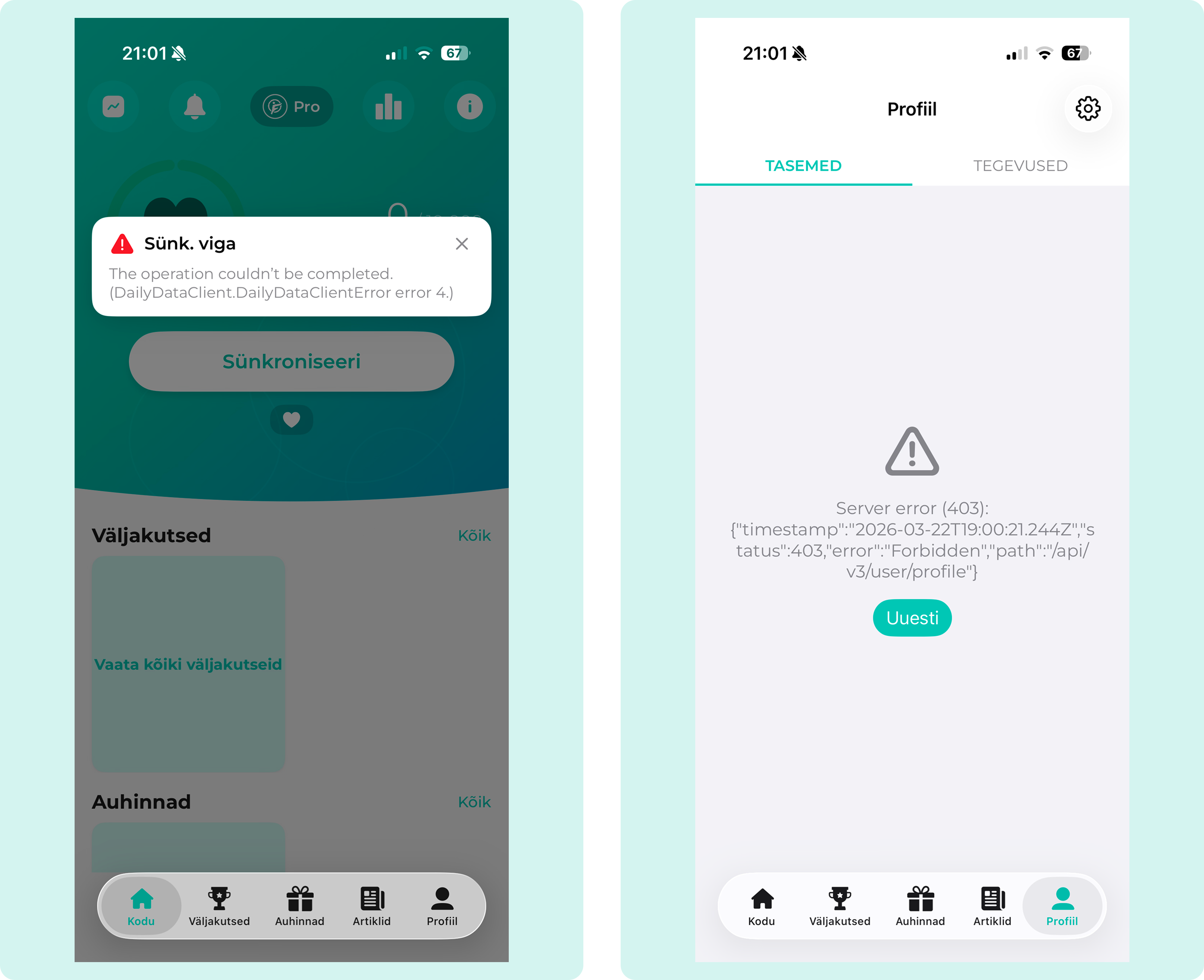
Step 1: Log out and log in again
- Log out of the FitSphere app
- Log back in
- Go to settings and select your connector again
If the problem persists, try the next step.
Step 2: Reinstall the app
- Delete the FitSphere app from your phone
- Redownload the app
- Log in and select your connector again. Grant all necessary permissions to the connector – see the “Connectors” section for detailed instructions
FitSphere app not displaying activity?
Check the following:
- Ensure that your source application (Google Fit, Apple Health, or smartwatch app) is displaying activity data.
- If the data is missing, turn activity measurement off and then back on again
- Go to FitSphere settings, disconnect from the source application and reconnect
- Make sure you select the same account when connecting that you are logged into in the source application
Why does FitSphere show different activity results than other applications?
FitSphere takes data from Google Fit, Apple Health or a smartwatch app and applies an additional filter to remove unrealistic or manually entered metrics. Therefore, the results may differ slightly from other apps.
Differences in measurement results are normal, as each app uses slightly different algorithms to calculate activity. The number of steps may vary by up to 10% between apps.
The main reasons why results may differ are:
- Different calculation methods — each application uses its own unique algorithms to detect and filter movement.
- Device sensors and data refresh rate — some apps update step counts in real time, while others process data periodically.
If you notice a slight difference between the results, this is completely normal and is due to the technical characteristics of different platforms when tracking activity.
What should I do if I cannot download the Google Fit app on my Huawei phone?
For Huawei devices that do not have Google Play services, we recommend using the Googlefier app or another similar solution to install Google services.
Why does FitSphere not count my steps on my Android phone?
Solutions for Android devices:
- Ensure that the Google Fit application is installed
- In Google Fit settings, turn activity tracking off and then back on
- Check your phone settings to ensure that the Google Fit app has all the necessary permissions
- Make sure that FitSphere and Google Fit are using the same Google account
Regular users can collect points for redeeming rewards for every synchronized step, kilocalorie, minute of activity and kilometre.
Pro users earn 1.5 times more points for each synchronized step. 1.43 times more points for each kilocalorie, minute of activity and kilometre.
To redeem rewards:
- Select “Rewards” in the bottom navigation bar.

- Select the desired reward and click “Redeem“.
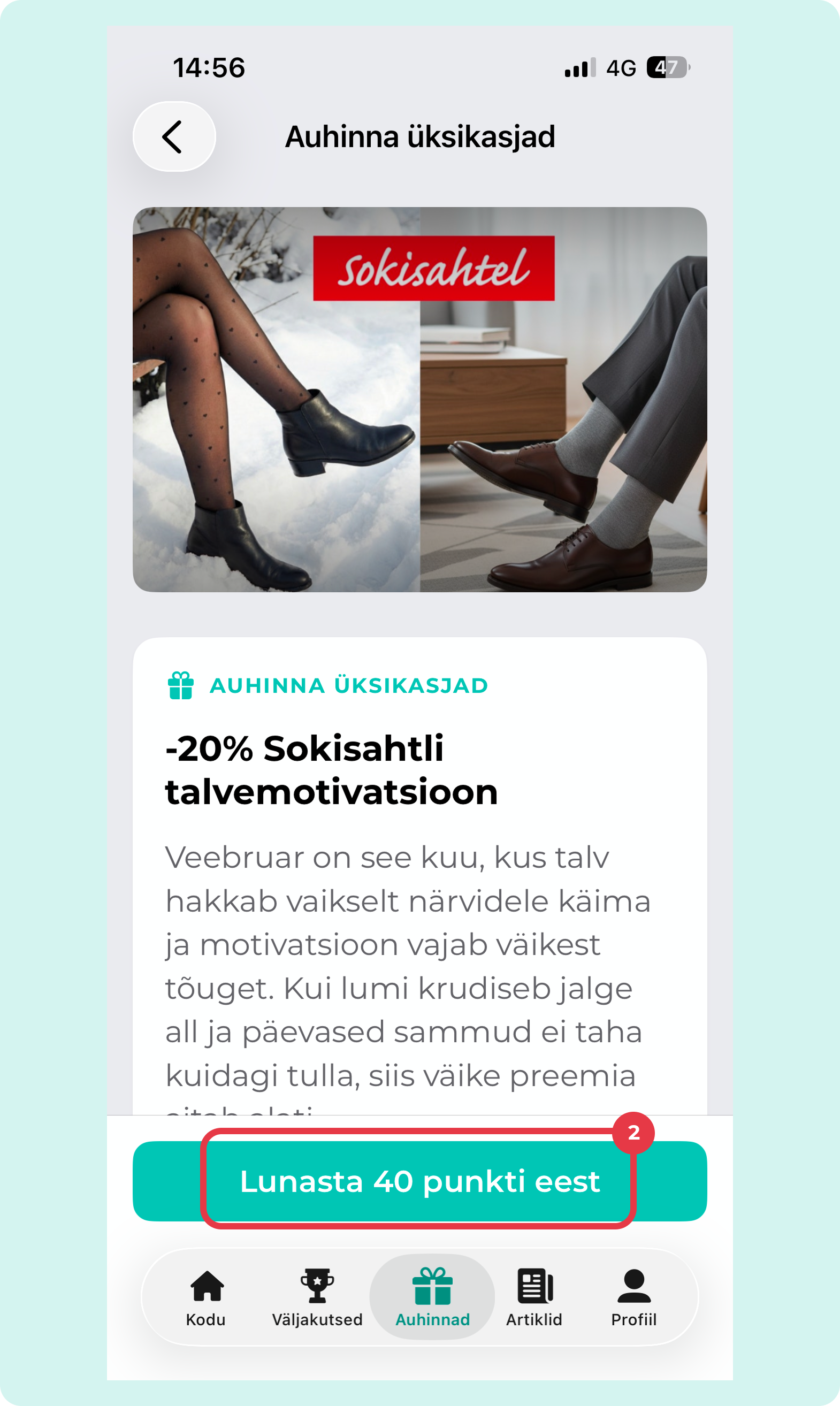
- After redemption, the reward will be moved to the “My Rewards” section, where you will find the gift code. You will also receive a purchase confirmation by email (with the gift code).
To participate in a challenge:
- Join the desired challenge in the application
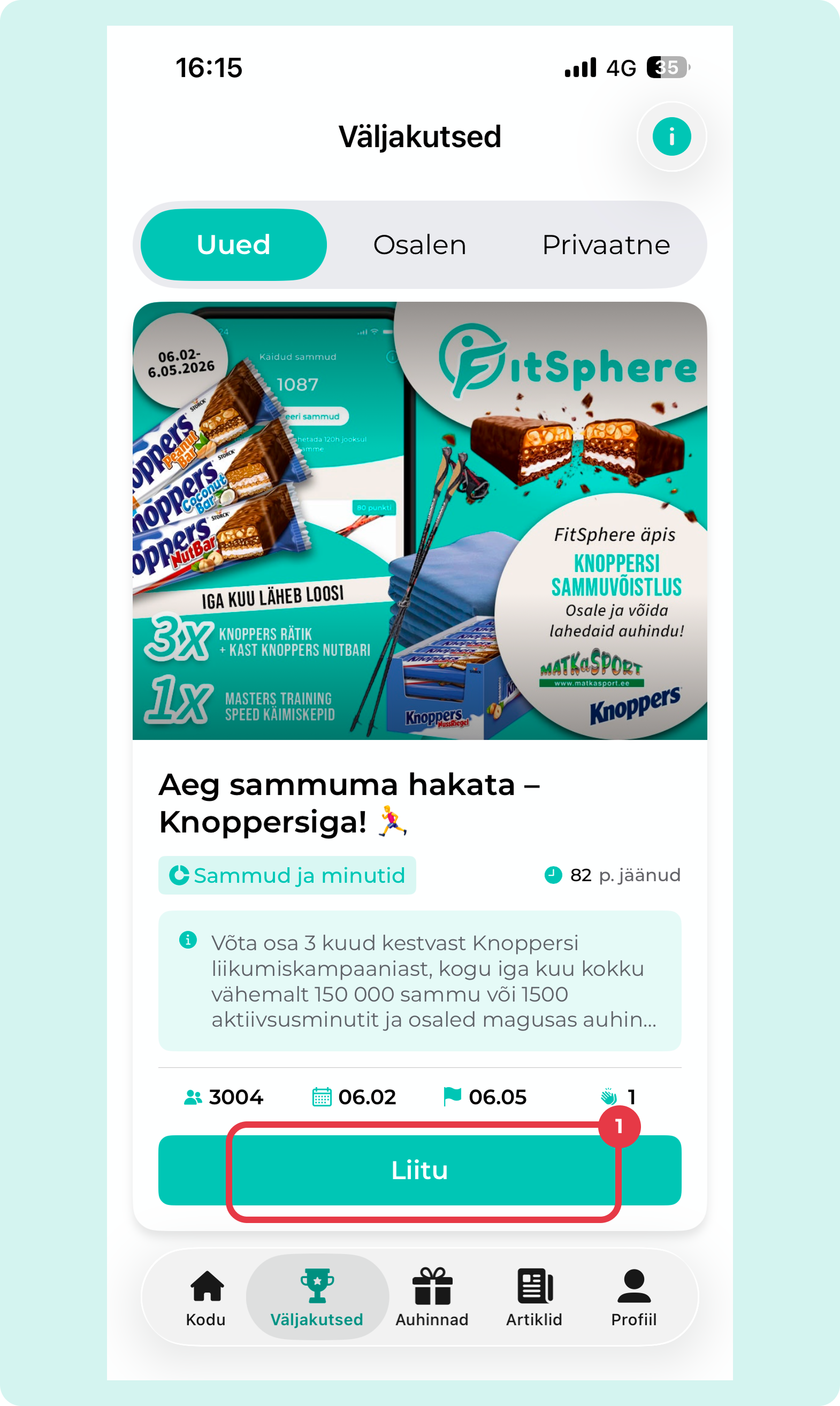
- Each challenge has a specific goal: steps, steps and minutes, distance

- Register your activity regularly (at least once every 150 hours) on the app’s home page – only activity recorded after joining will be counted.

You can participate in several competitions at once – all registered activity will be counted.
To join a private challenge:
- Scroll down to the bottom of the home page, where you will find the “Private Challenge” section.

- In the new window, you will find an input field where you can enter the private code. Press the “Join” button

You can obtain the private code from your organisation’s contact person. After confirming the code, you will be able to view and join your company’s challenge.
Didn't find the answer you were looking for?
Please ensure that you have downloaded the latest update for FitSphere.

